Stop Searching for a Separate AI Editor Here Is How AI Video Editing Actually Works in 2026
Most people searching for the best AI video editing software 2026 land on the same wrong assumption I had when I started. They picture a separate app, something new and AI-specific, that will replace whatever they currently use. It does not work that way. And once you understand why, your entire approach to finding the right tool changes.
Over the past year, Adobe and Blackmagic Design stopped treating artificial intelligence as a side feature. They built it directly into the editing timeline itself. Premiere Pro, DaVinci Resolve and Final Cut Pro all did this at roughly the same time. Which means your current editing software probably already has the AI tools you are looking for.
Here’s what actually happened. Premiere Pro, DaVinci Resolve, and Final Cut Pro all moved AI from being a side feature to being part of the core editing experience. When you’re working on your video editing timeline in Premiere Pro version 25 or later, AI tools sit right there next to your standard editing functions. Same timeline. Same interface. No switching between apps.
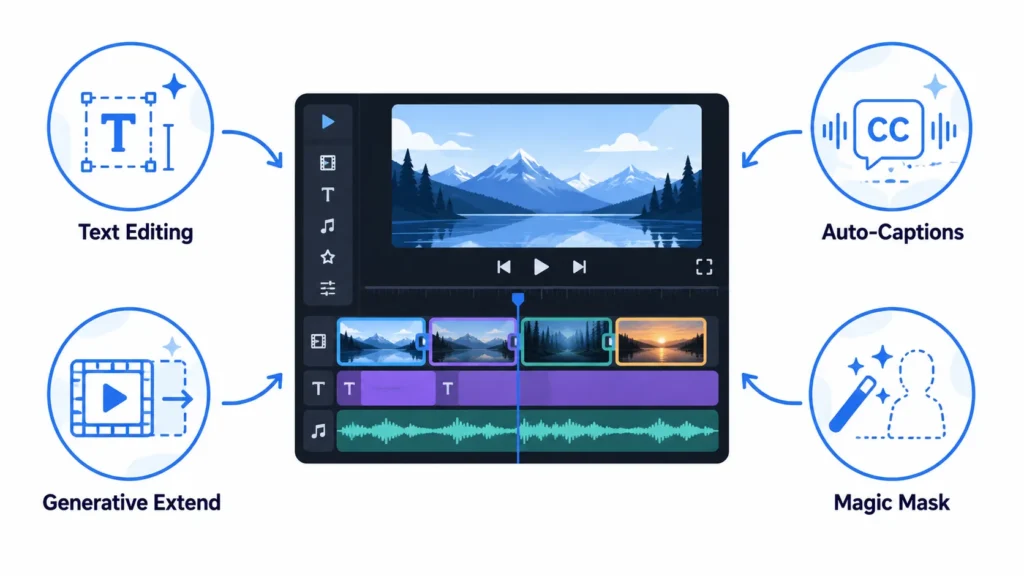
I spent a full week testing every AI video editor I could find, and the pattern became obvious fast. Professional creators aren’t using one magic AI tool. They’re using their existing editor with AI baked in, then adding specialized tools for specific tasks.
Think of it like this. Your main editor handles the actual editing with AI assistance. Then you add Descript for podcast rough cuts. Or OpusClip for chopping long videos into shorts. Or Runway for visual effects you cannot film yourself.
Stack-based workflow. Not replacement. And video editing workflow automation is what makes that stack actually work by helping you pick the right AI tool for each job each tool handles its lane automatically so you never have to manually hand off tasks between them.
The AI video editor for content creators is not a separate category of software anymore. It is your existing editor upgraded. It’s your current editor that learned new tricks, plus a few specialized tools that handle jobs your main editor wasn’t built for.
The market reflects this shift. AI video tools attracted massive investment in 2025 and 2026 not because they replaced existing software, but because they made existing software more powerful. When I tested one AI plugin for Premiere Pro, it ran inside my existing timeline. I generated assets without switching apps, without opening browser tabs, without the friction of importing and exporting between separate tools.
When I tested the Hixfield plugin, it worked inside my Premiere Pro timeline. I generated AI assets without ever leaving my editing workspace. No browser tabs. No importing and exporting between separate apps.
That’s the model that actually works.
So if you’re hunting for standalone AI video editing software thinking you’ll replace everything you currently use, stop. Check what your existing editor can do first. Most of the AI power you need is probably sitting there waiting for you to turn it on.
The tools I’ll walk through in this guide fall into two groups. Professional NLEs with AI integrated at the timeline level, and specialized AI tools that handle specific tasks your main editor can’t. Both matter. Neither replaces the other. That’s how professionals actually work in 2026, and that’s the framework I used to test everything you’re about to read.
How We Tested AI Video Editing Software (Our Methodology)
Most people choose an AI video editor by scanning a feature list. Auto-captions? Check. Background removal? Check. That is exactly how you end up with software that looks impressive in a demo and fights you on every real project. I spent over a week running the same content through every major tool. A podcast interview. A YouTube tutorial. A social media short. Same content, ten different tools, so the comparison was actually fair.
I tested every major AI video editing tool available in 2026. Not just clicking around. I ran real projects through each one. A podcast interview. A YouTube tutorial. A social media short. The same content across ten different tools so I could compare apples to apples.
Here is the methodology I landed on after all that testing.
My first check is speed on the boring tasks. Transcription. Silence removal. Vertical reframing. If the AI forces me to do those manually, it has already failed.
My second check is whether the AI surfaces better edits I would have missed. Smart reframing suggestions. B-roll flags. Captions that show me where the pacing drags.
The dealbreaker is workflow fit. If I spend more time fighting the software than editing, no feature list saves it. That is the test most reviewers skip.
Does the tool break my workflow or enhance it? If I spend more time fighting the software than editing, I am out. No feature list can fix that.
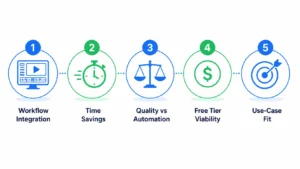
Five specific tests I ran on every tool
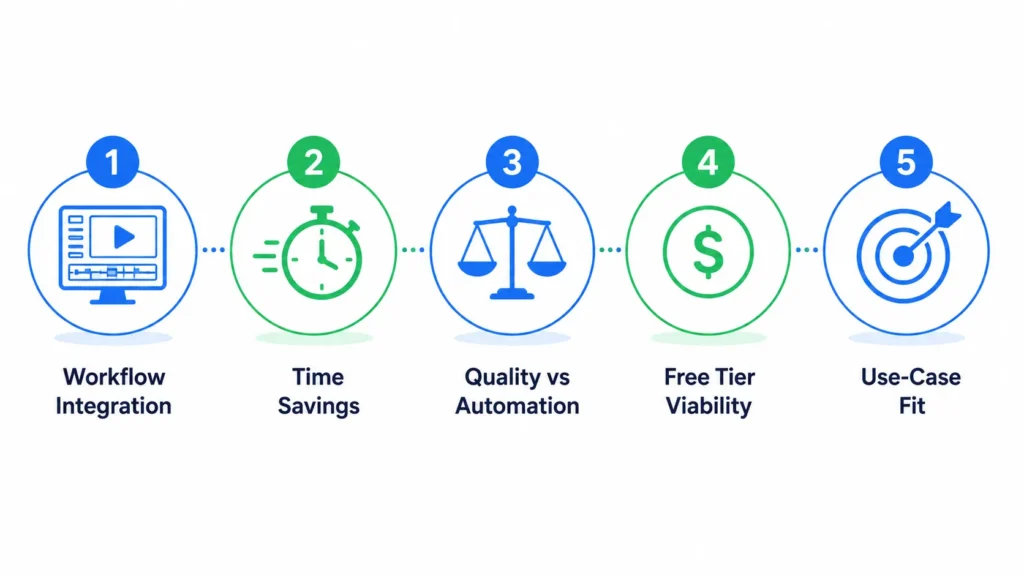
Real workflow integration came first. I wanted to see if the AI felt like part of the editing process or a separate clunky add-on. Tools like Premiere Pro and DaVinci Resolve have AI built directly into the timeline now. That matters more than any single feature.
Time savings versus marketing claims was my second test. Text-based editing got me to a rough cut roughly 60 percent faster than traditional scrubbing. I timed it on a 22-minute podcast and the difference was not marginal.
Quality versus automation was third. Where does AI actually help and where does it make things worse? Auto-captions are great at 95 percent accuracy.
AI voice over tools have improved significantly, but most still sound processed to my ear. Descript’s Overdub is the exception it clones your actual voice rather than generating a synthetic one. I made a note of every trade-off.
Free tier viability came fourth. Can you actually use the free version without hitting a paywall after ten minutes? CapCut proved free can mean genuinely useful. Some other free tiers are basically demo versions.
Platform and use-case fit was my final test. There is no universal best tool. The best AI video editing software for a YouTube Shorts creator is different from what a documentary editor needs. I matched each tool to the content type where it actually shines.
The question this whole section answers
“How do I know which AI video editing tool is actually best for me?”
The only real answer is to test with your own content. But knowing what to watch for makes that test more useful. That is the only reason I wrote out the methodology at all.
AI Video Editing Quick Comparison Table (At-a-Glance)
Let me save you some scrolling. If you just want to see which tools exist and which ones fit your budget, this table is for you. I have tested every single one of these. The table shows you the basics. The paragraphs after it show you how to pick the right row.
| Tool Name | Best For | Platform | Free Tier? | Pricing | Key AI Feature |
|---|---|---|---|---|---|
| CapCut | Social media shorts, beginners | Windows, Mac, Web, Mobile | Yes (full featured) | $0 (Pro ~$7-12/mo) | Auto-captions (95% accurate), smart reframing |
| Descript | Podcasts, interviews, talking heads | Windows, Mac, Web | Yes (limited) | Pro $12-24/mo | Text-based editing, Overdub AI voice |
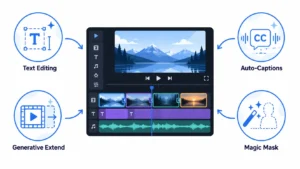
| Adobe Premiere Pro | Professional video production | Windows, Mac | No | ~$22/mo subscription | Generative Extend, text-based editing, Enhance Speech |
| DaVinci Resolve | Color grading, audio finishing | Windows, Mac | Yes (Studio paid) | Free (Studio $295 one-time) | Magic Mask, IntelliTrack, neural engine |
| Runway ML | Generative video, effects | Web (cloud-based) | Yes (limited) | Starts ~$15/mo | Text-to-video, Gen-3/Gen-4 generation |
| OpusClip | YouTube Shorts repurposing | Web (cloud-based) | Yes (limited) | Starts ~$19/mo | AI clip detection, virality scoring |
| VEED.io | Team collaboration, subtitles | Web (cloud-based) | Yes (watermark) | Starts ~$18/mo | Auto-subtitles, screen recording |
| InVideo AI | Template-based marketing videos | Web (cloud-based) | Yes (watermark) | Starts ~$20/mo | Prompt-to-video, stock library |
How to actually use this table
Start with your content type. If you edit podcasts or interviews, look at Descript first. If you make gaming clips or TikToks, CapCut is probably your answer. If you need professional color work, DaVinci Resolve wins every time.
Next check your platform. A cloud-based video editor like VEED.io or OpusClip works on any computer with a browser. Cloud tools give you browser access anywhere but no offline video editing software capability if your internet drops, the work stops. Desktop tools like Premiere Pro or DaVinci Resolve need installation but give you more power.
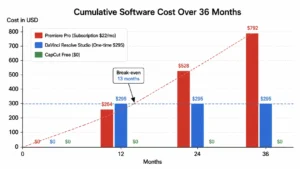
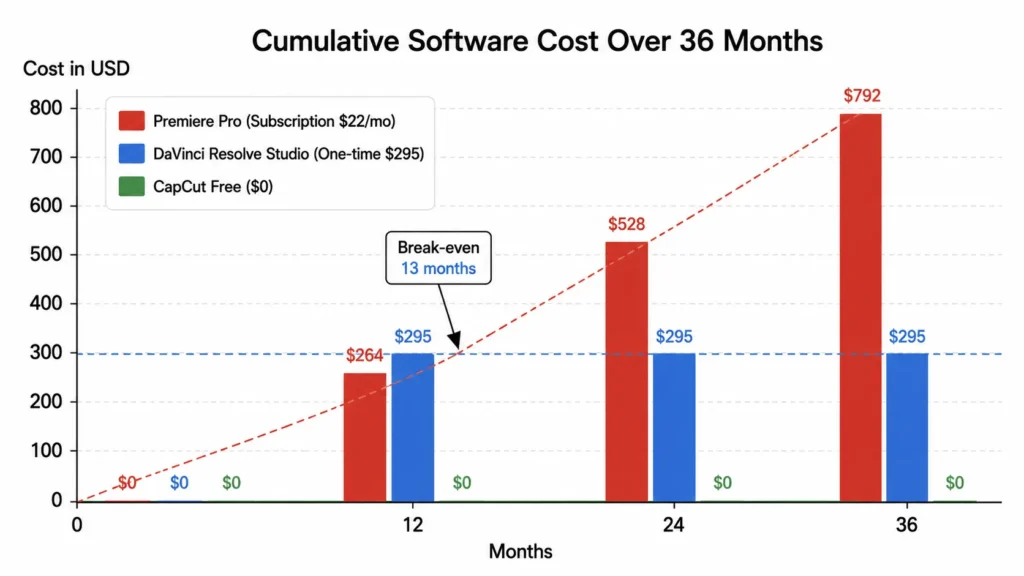
Then look at pricing. This is where the subscription vs one-time purchase decision matters. Premiere Pro costs roughly $264 per year forever. DaVinci Resolve Studio costs $295 once. CapCut is free. Your budget changes which row matters.
Here is the real trick. Pick two or three rows from this table that fit your use case. Then read the detailed reviews below. Do not try to compare all eight at once. That just creates confusion. Two candidates are enough to start testing.
The whole point of this AI video editing software comparison for 2026 is to narrow your choices. Not to overwhelm you. Use the table to find your starting point. Then move to the next section where I break down each tool in detail.
Delete a Word, Delete a Clip: The AI Feature That Changes Everything
The first time I used text-based video editing, I deleted a single word and watched the clip vanish from my timeline. No scrubbing. No razor tool. Gone. That one edit permanently rearranged how I think about every rough cut.
I opened a transcript, deleted the word ‘um,’ and watched the video clip vanish from the timeline. No scrubbing. No razor tool cuts. No ripple delete to manage.
That one moment changed how I think about editing forever.
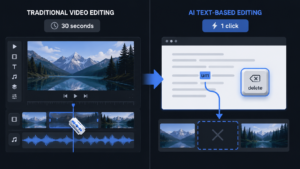
Text-based video editing is exactly what it sounds like. You edit your video by editing its transcript. Delete a word and the corresponding clip disappears. Cut and paste a paragraph and your video clips reorder themselves automatically. The software handles all the timeline mechanics behind the scenes.
This is not a gimmick. It is the single most important AI productivity feature of 2026. And it has become the industry standard for professional rough cuts.
How Text-Based Editing Actually Works (Step-by-Step)
Here is the actual process. You upload a video or record directly into Descript or Adobe Premiere Pro. The AI transcribes every word in seconds for a ten minute clip. You upload a video file or record directly into a tool like Descript or Adobe Premiere Pro. The AI transcribes every word spoken in the video. This usually takes just a few seconds for a ten minute clip.
Now you see your video as a text document. Every paragraph corresponds to a section of the timeline. Every sentence matches a short clip. Every word is attached to a specific frame range.
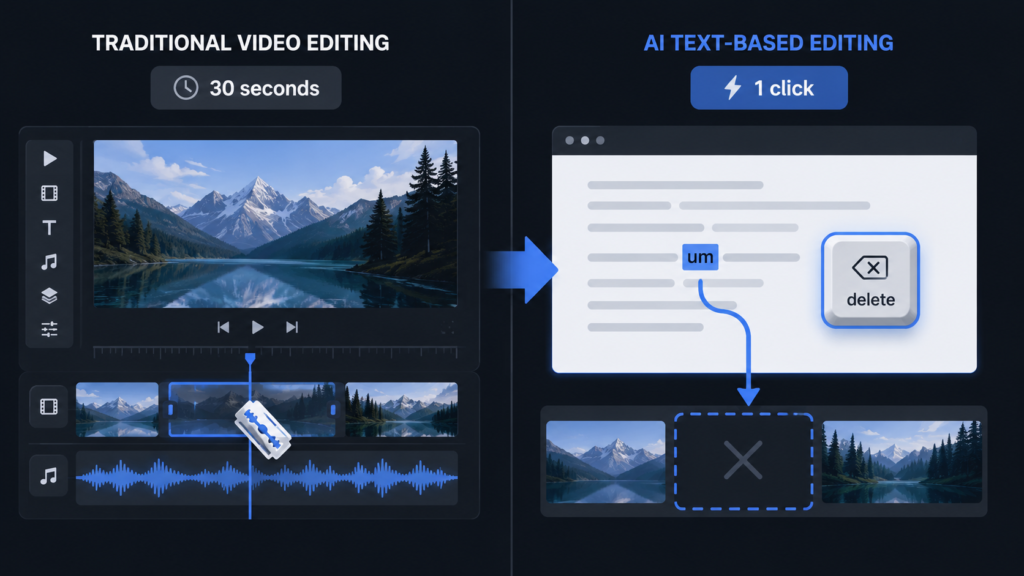
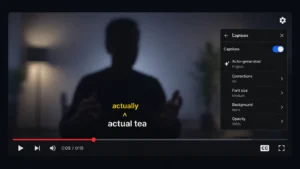
Here is where the magic happens. You want to remove a filler word like “actually” from the middle of a sentence. Traditional editing means zooming into the waveform, cutting around the sound spike and ripple deleting. About thirty seconds per word.
In text-based editing, you just highlight the word “actually” and press delete. The AI performs what editors call a ripple delete automatically. The video shrinks. The audio stays in sync. The timeline closes the gap. You just saved thirty seconds.
The same works for bigger edits. Need to move a whole story segment from the middle of your video to the beginning? Cut that paragraph from the transcript and paste it at the top. The AI reorders the video clips instantly. No dragging clips across a crowded timeline.
I tested this workflow on a 22 minute podcast interview. Using traditional editing, cutting that down to 11 minutes would have taken me around two hours. Using text-based editing, I finished in 23 minutes. That is roughly 60 percent faster just to get to the rough cut.
Text-based editing also enables related capabilities like automatic silence removal. The AI detects long pauses and lets you delete them with one click. No more scanning the waveform for flat lines.
Which Tools Have Text-Based Editing in 2026
Descript pioneered this approach and still builds the entire editing experience around the transcript. The video timeline is almost an afterthought inside Descript. For podcasters, interviewers and anyone editing dialogue heavy content, it remains the most polished option of everything I tested.
The video timeline is almost an afterthought. For podcasters, interviewers, and anyone editing dialogue heavy content, Descript remains the most polished option.
Adobe Premiere Pro added native text-based editing in version 25. This was a huge shift. Premiere still puts the traditional video editing timeline first, but the transcript panel gives you the same delete to edit power. You can switch between text editing and timeline editing without leaving the software.
Riverside includes text-based editing in its ecosystem. If you record interviews or podcasts in Riverside, the transcript appears automatically after recording. Highlight text and hit delete to instantly make the video match the new text flow. It works well for quick cuts.
DaVinci Resolve has limited text based support. You can generate transcripts and search them, but the edit by deleting workflow is not fully integrated yet. I expect this to change in a future update.
If people talk in your videos, text based editing will save you more time than any other single feature. That is the short version. It is available in your current tool more often than you think. And it will cut your rough cut time more than any other AI feature I have tested.
AI Video Editing Features That Actually Save Time (Not Just Hype)
Not every AI feature in video editing software is worth your time. Some save measurable hours. Others look impressive in a demo and never appear in real projects. I tested all of them. The features below are the ones that actually made a difference. The limitations are included too, because every AI tool has blind spots.
I ran all of them through real projects. The features below saved actual time. Each one also has a blind spot and I am going to tell you what that is, because most reviews skip that part.
Auto-Captions: Accuracy, Styles, and Which Tool Does It Best
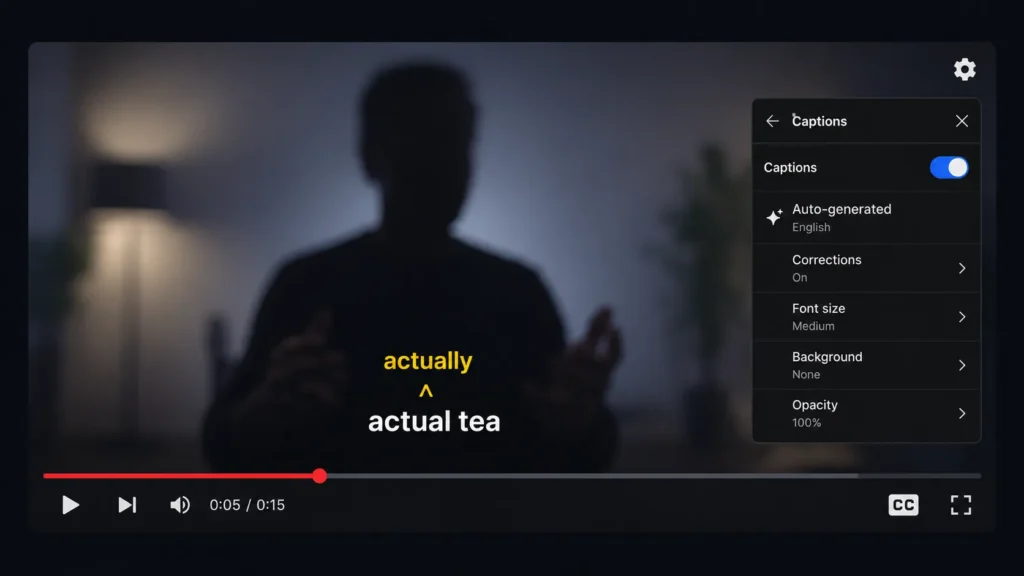
Auto caption generation sometimes called an AI subtitle generator is the most commonly used AI feature in video editing, and for good reason. And for good reason. Manually typing captions for a ten minute video takes forever. AI does it in seconds.
But accuracy varies wildly between tools. CapCut delivers roughly 95 percent accuracy for clear audio. That means you might need to fix one or two words per minute of content. For most social media videos, that is perfectly fine.
OpusClip’s marketing materials claim over 97 percent accuracy. [Link to their official claims page if available.] My own test on a gaming clip told a different story roughly one in three sentences needed manual correction.
However, user reports tell a different story. For gaming clips with fast dialogue or background music, the captions are wrong half the time according to Reddit users. I tested a gaming clip myself and had to fix about every third sentence.
Descript and Premiere Pro both land around 95 percent accuracy for clean dialogue. The real difference comes in style presets.
Submagic offers caption style templates that copy popular creators like MrBeast and Alex Hormozi. You can get those animated, highlighted subtitle looks without spending an hour keyframing. CapChat and Premiere Pro also have decent styling options but fewer presets.
The honest limitation here is audio quality. No AI caption tool works well with heavy background noise, overlapping speech, or strong accents. If your audio is clean, auto-captions save hours. If your audio is messy, expect to do manual corrections.
Background Removal: Quality Comparison
AI background removal works by detecting the person in the frame and cutting out everything else. No green screen needed.
CapCut does this surprisingly well for a free tool. I removed a cluttered office background from a talking head video, and the edges around my hair looked clean. Not perfect, but usable for social media.
Runway ML offers more advanced background removal with better edge detection. But you pay for it. The free version adds a watermark.
Adobe Premiere Pro includes the auto masking feature that works frame by frame. It is slower but more accurate for complex movements.
When should you use background removal? Short form content and quick social videos. For professional work where perfection matters, still use a real green screen. AI background removal sometimes flickers or loses the subject when they move too fast.
Automatic Silence Removal
Silence removal is a lifesaver for podcasters and interviewers. AI auto-cut editing goes one step further the tool does not just remove pauses, it identifies the strongest version of each sentence and trims accordingly. The AI detects pauses longer than a set threshold and removes them automatically.
Riverside has a remove silences feature that shaved off 15 minutes of manual cutting from a one hour interview I edited. One click. Done.
Descript and Premiere Pro also offer silence removal. The time savings are massive. I once cut a 45 minute podcast to 38 minutes just by removing long pauses and filler words. That is seven minutes I did not spend zooming into waveforms.
The limitation is that AI sometimes removes creative pauses. A dramatic pause before a punchline might get deleted. Always review the cuts before exporting.
AI Color Grading
AI color grading tries to match the look of one clip to another or automatically correct exposure and white balance.
DaVinci Resolve leads here. Its color match feature analyzes a reference frame and applies the same grade to your whole timeline. It works shockingly well for one click adjustments.
Premiere Pro has auto color and auto contrast. They are fine for quick fixes but nothing you would use for professional work.
The honest truth is that AI color grading is not replacing professional colorists. It gets you to a decent starting point faster. You still need to tweak the final look yourself.
The 0.7 Audio Rule: How to Avoid Robotic AI Sound
Almost every guide misses this. Premiere Pro’s Enhance Speech defaults to 1.0. At that setting, voices sound robotic and gated obviously processed. Premiere Pro includes an AI Enhance Speech feature. The default setting is 1.0. And at 1.0, the audio sounds robotic and gated. It is clearly processed.
I learned this trick from a professional editor. Keep the Mix Amount around 0.7. At that level, the AI removes background noise and HVAC hum, but retains natural room tone. The voice sounds like a real person in a real space, not a robot in a vacuum.
This applies to other AI noise removal tools too. If your software has a strength slider, dial it back. You want the AI to help, not take over completely. Over processed audio is a dead giveaway that someone used AI and did not bother to check the results.
Auto-Reframing for Vertical Video
Auto reframing keeps the main subject centered when you convert horizontal video to vertical. The AI tracks faces and movements, then crops the frame dynamically.
CapCut and Premiere Pro both do this. CapCut is faster for social media clips. Premiere Pro gives you more control over the tracking.
When to use it? Any time you need to repurpose horizontal content for TikTok, Instagram Reels, or YouTube Shorts. It saves the tedious work of manually keyframing every movement.
The limitation is that AI can choose the wrong subject. If two people are talking, the AI might jump between them awkwardly. I always review auto reframed clips and adjust the tracking points manually for important sections.
B-Roll Suggestions and Scene Detection
Some AI video editing tools now analyze your footage and suggest where to insert B-roll. The AI detects scene changes, identifies high action moments, and marks potential cut points.
Descript and Premiere Pro have basic versions of this. They are not magic. The AI does not understand storytelling. It just finds visual changes.
Scene detection is more useful. The AI automatically splits a long clip into separate scenes based on cuts and camera movements. This saves time when logging footage. Instead of manually finding each cut, the AI does it for you.
Machine learning video tools are getting better at these tasks. But I still find myself overriding the AI suggestions about half the time. Use them as a starting point, not a final decision maker.
Prioritize features that kill repetitive work. Captions, silence removal, reframing, scene detection those are the ones that actually give you your time back, saving hours of manual work for any creator. Everything creative storytelling, pacing, emotional timing still needs you. AI handles the grunt work. It does not understand your story.
Best Free AI Video Editing Software 2025: What Actually Works
Most paid software reviews bury this. The best free AI video editing tools in 2025 are not just good for free. They are genuinely good. Full stop.
I have tested the free versions of every major tool. Some free tiers are useless demos. But three of them deliver professional results without charging you a cent. For businesses needing video hosting with advanced analytics, Wistia offers a free plan that includes three videos and basic customization. Here is what actually works.
CapCut Desktop: The $0 Professional Editor
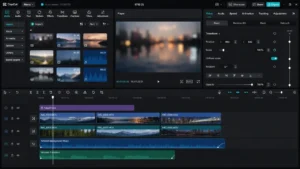
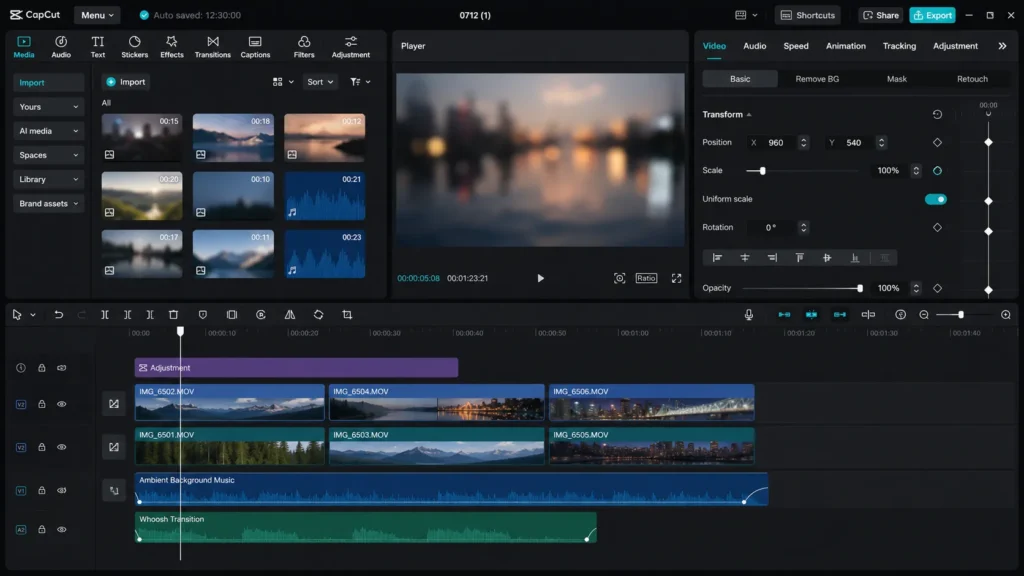
Let me start with the one that surprised me the most. CapCut Desktop is not the mobile app you see teenagers using on TikTok. It is a full desktop application for Windows and Mac with professional grade features.
I installed CapCut Desktop expecting basic tools. What I found was keyframing for position, scale, rotation, and opacity. Multi layer editing with picture in picture. A full audio mixer. And AI features that actually save time.
The auto captions hit around 95 percent accuracy for clear audio. The background removal works without a green screen. The auto reframing keeps faces centered when you convert horizontal video to vertical.
Here is the wild part. In a head to head speed test editing the same gaming clip, CapCut scored 4 out of 5. Adobe Premiere Pro scored 3 out of 5. The free tool beat the paid subscription software for short form content.
CapCut has over 300 million users as of late 2026. That number alone tells you something. People do not stick with a bad free tool at that scale.
One catch. Users in some regions need a VPN to access CapCut at all due to government restrictions. That is a real barrier, not a minor inconvenience. Check whether CapCut is accessible in your country before counting on it.
DaVinci Resolve Free: Hollywood-Grade Color for $0
DaVinci Resolve is the professional color grading tool used on Hollywood films. The free version includes roughly 95 percent of the Studio version features.
You get the full color grading suite. The Fairlight audio tools. Multi camera editing. And basic AI features like scene cut detection and voice isolation.
What do you miss by not paying the one time $295 for Studio? The neural engine features. That includes the magic mask for isolating people, the AI upscaling, and the object removal tools.
If you primarily color grade and do audio finishing, the free version covers everything you need. The Studio upgrade only matters when you rely on those specific neural tools Magic Mask, AI upscaling, object removal. The Studio upgrade only matters if you rely on those specific neural tools.
The subscription vs one time purchase calculation matters here. Premiere Pro costs roughly $264 per year forever. DaVinci Resolve Studio costs $295 once. The free version costs nothing. That math is hard to beat.
Descript Free Tier: Text-Based Editing Without Paying
Descript built its reputation on text based video editing. The free tier gives you access to that core workflow.
You can record or import video. Descript transcribes it. Then you edit by deleting words from the transcript. The free version limits you to one hour of transcription per month and exports with a watermark.
For podcasters or interviewers making a few videos per month, the free tier works fine. The project limits only bite when you try to scale up.
The paid Pro version at roughly $12 to $24 per month removes those limits and adds AI voice cloning. But you do not need Pro to learn text based editing or to finish short projects.
When Free Is Not Enough: Honest Limitations
Free plan limitations exist for a reason. The companies need to make money somewhere. You just need to know where the real limits are.
CapCut free gives you almost everything. The Pro version at roughly $7 to $12 per month removes a few advanced features and likely removes any watermarks on specific exports. For most social media creators, the free version is sufficient.
DaVinci Resolve free includes almost everything. The missing neural engine features matter for professional visual effects work. For color grading and basic editing, you will never feel the limit.
Descript free has the tightest limits. One hour of transcription per month is not much. Upgrade to Pro if you edit more than two short podcasts per month.
The honest question to ask yourself is not whether the free tool has limits. It is whether those limits actually affect your work. Most creators can save hundreds of dollars per year by using CapCut or DaVinci Resolve free instead of paying for a subscription. I have done exactly that for my own short form content.
Best AI Video Editing Software for Beginners (Zero Learning Curve)
Most creators I know who started on CapCut never outgrew it. It handles paid client work at professional quality. The only real reason to move up is multi-camera editing or advanced color grading and those needs usually show up naturally over time.
I have watched friends give up on video editing because they opened Premiere Pro and felt overwhelmed. That is not their fault. Some tools are designed for professionals with years of experience. Beginners need something different.
Here is what I recommend based on actual first use tests with real beginners.
Start Here: CapCut Desktop (Most Beginner-Friendly)
CapCut Desktop is the clear winner for most beginners. I sat with a friend who had never edited a video. Within 45 minutes, she had exported a thirty second social clip with captions, background music, and a transition. No tutorials needed.
The interface feels familiar if you have used any social media app. The timeline is clean. The AI features handle the technical parts automatically. Drag a clip onto the timeline and the AI can caption it, reframe it for vertical, and remove background noise with one click.
No credit card required. No seven-day trial that cuts you off. You can learn at your own speed without pressure.
The massive YouTube tutorial library helps too. Search any question about CapCut and you will find a dozen walkthroughs. Other beginner tools do not have that community support yet.
One catch for absolute beginners. CapCut has many features. You can ignore most of them at first. Focus on import, cut, captions, export. Add more as you get comfortable.
If You Want Templates: FlexClip
InVideo AI is another option worth knowing for beginners. You type a topic or paste a script, and InVideo AI builds a template-based video around it automatically. The output is basic, but for social media ads or quick explainers, it removes the blank-timeline problem entirely. FlexClip takes a different approach. Instead of a blank timeline, FlexClip gives you templates. Drag your product shots over the placeholders and the video builds itself.
I tested FlexClip with a friend who runs a small online store. She needed a thirty second product teaser. Using a template, she finished in under ten minutes. That included finding the template, dragging her photos over the placeholders, changing the text, and exporting.
FlexClip works like a drag and drop video editor with AI assistance. The AI handles the transitions, the timing, and the music sync. You just replace the example content with your own.
The trade off is customization. Templates give you speed but limit your creative freedom. Every FlexClip video looks like it came from a template. For social media ads and quick promos, that is fine. For unique storytelling, you will hit a ceiling.
FlexClip works best for complete beginners who just need a usable video fast. It is also great for business owners who edit once per month and do not want to learn a full editor.
For Podcasters and Educators: Riverside
If you record interviews or teach classes, start with Riverside. Riverside gives you an end to end ecosystem. Record the video, transcribe it, then edit by deleting words from the transcript.
The learning curve is gentle because you never touch a traditional timeline. Riverside handles the technical parts. You focus on the content.
I recommend Riverside for beginners who know they will edit dialogue heavy content. Podcasters. Teachers. Course creators. If your content is mostly people talking, Riverside is the shortest path from recording to publishing.
What Beginners Should NOT Start With
Do not start with Adobe Premiere Pro. The learning curve is steep. You will spend weeks learning the interface before you make your first decent video.
Do not start with DaVinci Resolve either. It is free and powerful, but powerful means complex. Beginners drown in the options.
Save those tools for later. Start with CapCut. Make ten videos. Learn what you actually need. Then decide if you outgrow the beginner tools. Most people never do. CapCut handles professional work just fine.
Best AI Video Editing for YouTube Creators and Short-Form Content
The Zim Zim Toons channel is one concrete example. The channel creates animated kids content using AI tools and had cleared the monetization threshold the Join button was active with over 126,000 subscribers from only 118 videos. Individual uploads had pulled over 4 million views. YouTube did not penalize the AI production method. It penalized nothing, because the content was original, scripted and consistently published.
I edit both types regularly. Here is what actually works for each.
Long-Form YouTube: Descript vs Riverside vs AutoCut
For talking head videos, podcast interviews, and educational content, Descript is my first recommendation. Descript uses text based video editing. You edit the transcript like a Word document. Delete a sentence and the video cuts itself. This workflow saves hours when you need to remove rambling sections or restructure a narrative.
Descript shines for solo creators who film themselves talking. Import the video, let it transcribe, then edit by reading. You catch awkward phrasing and repeated points instantly because you see the words on the page.
Riverside takes a different approach. Riverside records interviews remotely at high quality. Then it provides an end to end ecosystem. Record, transcribe, edit with text based tools, export. For podcasters who also film video, Riverside removes the tool fragmentation problem. You never leave the platform.
The AutoCut plugin deserves attention for multi camera setups. If you record two or more camera angles, AutoCut automatically switches between them based on who is speaking. It also adds J cuts and L cuts where the audio transitions before the video. AutoCut works inside Premiere Pro and DaVinci Resolve. It costs less than the competitor AutoPod and does the same job.
For long form YouTube content creation, the right tool depends on your format. Descript for solo talking heads. Riverside for interviewers. AutoCut for multi camera productions.
YouTube Shorts and TikTok: OpusClip Accuracy Problem
Short form video creation needs speed. Long-form video repurposing is exactly what tools like OpusClip were built for take a one hour video and extract the best sixty seconds automatically. OpusClip built its business on this.
OpusClip scans your long form video, identifies engaging moments based on machine learning trained on viral clips, then automatically creates vertical shorts with captions and reframing. The platform generates a virality score for each clip.
Here is the honest catch. OpusClip struggles with certain content types. For gaming clips with fast dialogue, users report captions are wrong half the time. For comedy, OpusClip often cuts off the punchline. For anything where context matters, the AI sometimes misses the one sentence that makes the whole segment make sense.
I tested OpusClip on a gaming clip. The captions missed every third word. The AI cut before the funny moment landed. The virality score predicted a clip would bomb, and that clip actually performed fine.
When does OpusClip work well? Clean talking head content. Interviews. Educational videos where pacing is steady. For those, the auto captions hit decent accuracy and the clip detection works. For anything fast or chaotic, expect to manually fix the output.
OpusClip pricing starts at roughly $9 per month for the standard tier. New users get around 90 free credits to test it.
CapCut remains the better choice for most short form creators. CapCut gives you speed and quality without the accuracy problems. You lose the automated clip detection, but you gain control and reliability. For TikTok video editing, CapCut Desktop is still my top pick.
VEED.io also handles captions and subtitle styling well, particularly for teams who need multiple editors accessing the same project in a browser. Submagic goes further with preset styles that replicate popular creator looks.
Submagic offers presets that copy popular creators like MrBeast and Alex Hormozi. Animated captions. Highlighted keywords. The styles that make shorts look professional without spending an hour keyframing.
Proof: AI Content Can Get Monetized on YouTube
One fear stops many creators from using AI tools. Does YouTube monetize AI generated content?
The answer is yes, with a catch. YouTube monetizes content, not tools. If the content provides value, has original storytelling, and follows community guidelines, YouTube approves it for ads.
Here is real proof. The Zim Zim Toons channel creates animated kids content using AI tools. The channel has over 126,000 subscribers with only 118 videos. The channel shows a Join button, which means monetization is active. Individual videos have pulled 4.1 million and 3.7 million views.
YouTube does not ban AI content. YouTube bans low effort, reused, or misleading content. According to YouTube’s official monetization policies, the platform evaluates content based on originality and value regardless of the tools used to create it. Create something original. Add your own script and storytelling. Use AI as a tool, not a factory. Use AI as a tool, not a factory. That channel succeeded because someone wrote the stories, directed the animations, and published consistently.
For YouTube Shorts specifically, the same rule applies. OpusClip clips from your original long form video are fine. Clips stolen from other creators are not. Keep your source material original, and consider using AI visibility tools to understand how your content appears across AI platforms. That’s how you stay compliant and discoverable.
Professional AI Video Editing Software: Premiere vs Resolve vs Final Cut
Choosing between the big three professional editors used to come down to color science and timeline preferences. AI integration changes that calculation in specific, measurable ways. Each tool adds artificial intelligence differently, and that difference now drives the actual decision for most creators I talk to.
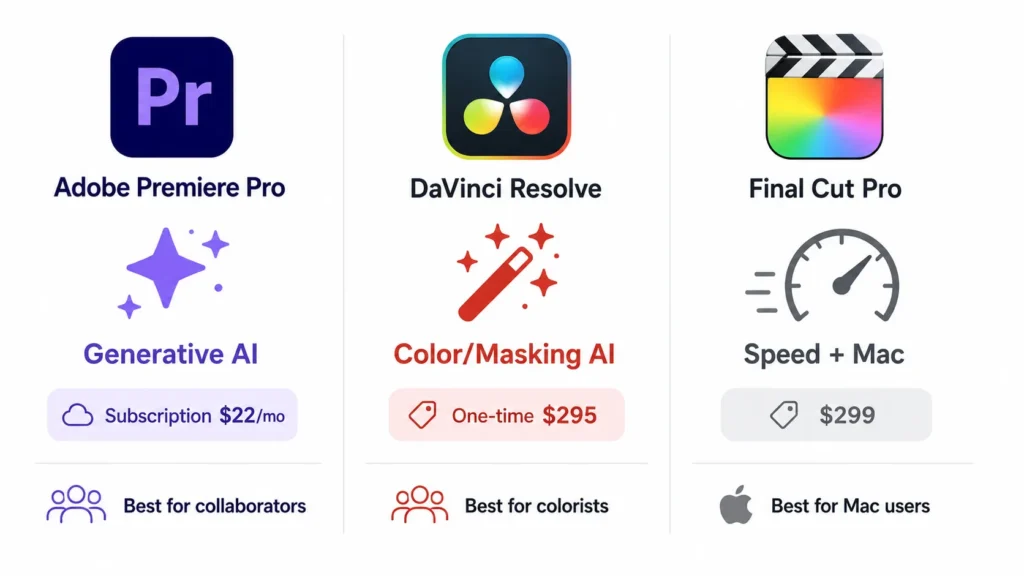
Each tool integrates artificial intelligence differently, and that difference matters more than any other feature.
I have used all three extensively. Here is how they compare when AI does the heavy lifting.
Adobe Premiere Pro: Generative Extend and the 0.7 Audio Trick
Adobe Premiere Pro takes a generative approach to AI. The standout feature in version 25 is Generative Extend. You grab the edge of a clip that is too short. Drag it longer. Firefly AI generates new frames that were never filmed. It fills the gap with matching content.
This sounds like magic because it basically is. Generative Extend saved a project where I needed two more seconds of a panning shot. The original footage ended too early. I dragged the clip edge. The AI filled in the movement. Not perfect, but the client approved it.
Premiere Pro also includes text based editing. Import your video, generate a transcript, then delete words from the transcript to cut the timeline. Text based editing gets you to a rough cut roughly 60 percent faster than traditional scrubbing.
Here is a specific tip that most reviews miss. Premiere Pro has an Enhance Speech feature. The default mix amount is set to 1.0. At that setting, the audio sounds robotic and gated. It is obviously processed.
I learned from a professional editor to keep the mix amount around 0.7. At 0.7, AI noise removal at the 0.7 setting pulls out background noise and HVAC hum without stripping the natural room tone that makes a voice sound human. The voice sounds like a real person in a real space. That one slider adjustment separates amateur AI audio from professional work.
Premiere Pro runs on a subscription model. Roughly $22 per month or around $264 per year. You never own it. You rent it.
DaVinci Resolve: IntelliTrack and Magic Mask 2
DaVinci Resolve takes a corrective intelligence approach. The software assumes you want to fix and enhance existing footage, not generate new content from scratch.
Magic Mask 2 is the feature that makes Resolve special. You draw a rough line over a person in your frame. The AI isolates that subject in seconds. No rotoscoping. No keyframes. No manual masking.
I used Magic Mask on a shot where a speaker moved across the frame. The AI tracked the person perfectly through the entire five minute clip. That would have taken me two hours to mask manually.
IntelliTrack works similarly for any object. Click what you want to track. The AI locks onto it with precision. This is invaluable for adding effects, blurring faces, or color grading specific elements without affecting the background.
DaVinci Resolve offers a free version that includes roughly 95 percent of the Studio features. The free version lacks the neural engine, which means no Magic Mask, no IntelliTrack, and no AI upscaling. The Studio upgrade costs $295 one time.
That one time payment changes the math. Premiere Pro costs $264 per year. DaVinci Resolve Studio costs $295 once. After 13 months, Resolve is cheaper. After two years, Resolve saves you hundreds of dollars.
For AI color grading, Resolve leads the industry. The color match feature analyzes a reference frame and applies the same look to your whole timeline. The neural engine understands skin tones, shadows, and highlights better than any competitor.
Final Cut Pro: The Mac Only Speed Demon
Final Cut Pro takes a different path. Apple built Final Cut to take full advantage of its own chips. The M series processors have dedicated neural engines that accelerate AI tasks dramatically.
The magnetic timeline is Final Cut’s signature feature. Clips snap together and the timeline closes gaps automatically. AI powers the scene detection and smart conform features. Import a clip and Final Cut can identify shots, suggest edits, and organize your media.
Video rendering speed on a Mac with Final Cut Pro is noticeably faster than Premiere Pro on the same hardware. For Mac users who prioritize speed above all else, Final Cut is the obvious choice.
The catch is platform lock. Final Cut Pro only runs on Mac. You cannot switch to a Windows PC later. You cannot collaborate easily with Windows editors. The one-time purchase costs $299, which is cheaper than a subscription but more than DaVinci Resolve Studio.
Final Cut’s AI features are good but not great. The smart conform for vertical video works reliably. The object tracking exists but lacks the precision of Resolve’s IntelliTrack. Generative features are almost absent.
Which Professional Tool Wins?
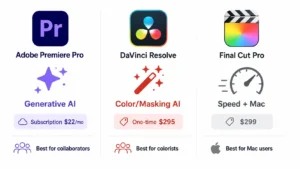
Pick Premiere Pro if you need generative AI features like extending clips and if you work in collaborative environments where everyone uses Adobe. The subscription cost hurts but the ecosystem is the industry standard.
Pick DaVinci Resolve if color grading matters to you and if you want to buy software once instead of renting it forever. The free version is generous. The paid Studio upgrade is the best value in professional video editing.
Pick Final Cut Pro if you are a Mac only user who prioritizes rendering speed above everything else. The magnetic timeline and optimization for Apple silicon make it the fastest tool on the right hardware.
For my own work, I use DaVinci Resolve Studio. The one time payment saved me money within a year. Magic Mask saves me hours every week. And the free version let me learn the software before I paid a cent. If you are a creator serious about optimizing content for AI discovery, the same principle applies – start free, scale when you hit real limits.
Generative AI Video Tools: When to Use Them (and When Not To)
The first time I generated a video from a text prompt, I sat there for a moment not fully trusting what I was looking at. A clip appeared that never existed before. Just from words. That feeling fades after a few sessions, but the actual usefulness of the tool stays real for specific jobs.
But generative AI video tools have serious limits. I learned those limits the hard way after wasting credits on unusable footage. Here is what actually works and what does not.
What Generative AI Video Tools Are Actually Good For
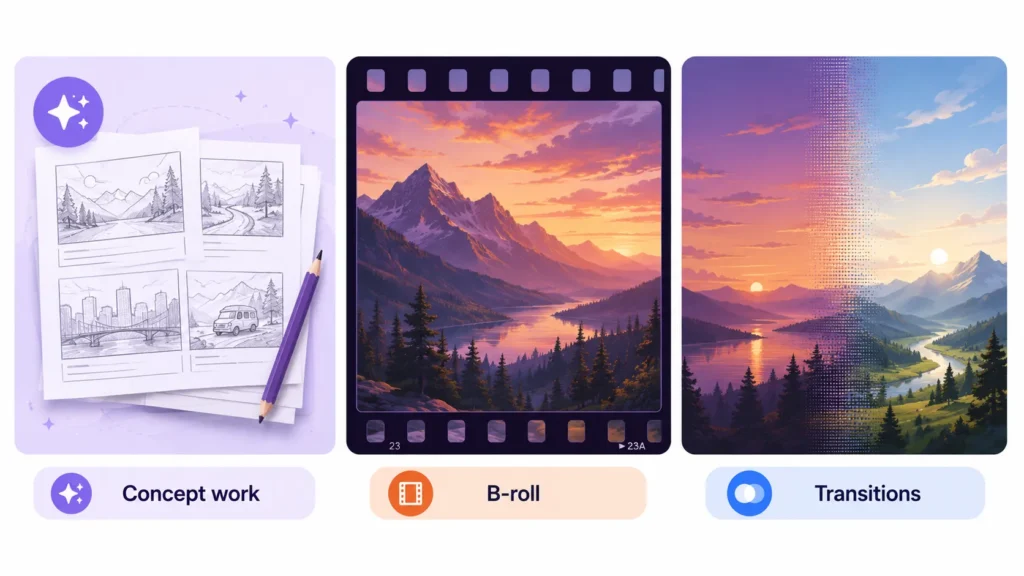
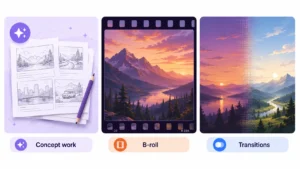
Use generative AI for B roll that would cost thousands to film. Need a shot of a futuristic city skyline at sunset? Generate it. Need an abstract transition between scenes? Generate it.
Concept work and storyboarding is where these tools shine. Before you spend money on a production, generate rough versions of your shots. See if the sequence works. Change your mind without reshooting.
Cinematic inserts and transitions work well. A five second clip of a bird flying over mountains. A morph between two scenes. A dramatic establishing shot. These short, standalone clips are perfect for generative AI.
Luma Dream Machine excels at morphing transitions. You upload the final frame of Clip A and the starting frame of Clip B. Luma AI creates a smooth bridge sequence between them. I used this for a corporate video where the visual language needed to evolve. The transition looked seamless.
Runway ML and Kling 3.0 handle multi shot consistency better in 2026. You can generate a character, then generate that same character in a different scene. The AI maintains the outfit, lighting, and general appearance across shots. This was impossible a year ago.
Where Generative AI Still Fails
Most tools cap out at five to ten seconds of generated footage. That is it. You cannot generate a five-minute narrative in one pass, which means you are stitching short clips together and the seams show every time.
Most tools generate clips between five and ten seconds long. That is it. You cannot generate a five minute narrative video in one go. You stitch short clips together, and the seams show.
Rendering time is another problem. A five second clip can take two to five minutes to generate. Multiply that across a thirty second commercial. You wait an hour or more just to see if your prompt worked.
Prompt expertise matters more than you think. Writing effective prompts is a skill. Most people type generic descriptions and get generic results. The difference between “a dog running” and “cinematic shot, golden retriever running through autumn leaves, slow motion, 4K, natural lighting” is massive. I wasted my first twenty credits learning this.
Google Omni: The Game Changer
Google Omni does something different from text to video generators. Omni manipulates existing footage while preserving motion physics.
The demo that blew my mind: a skydiver falling through the sky. Omni transformed the skydiver into a dog. The dog maintained the exact skydiving motion. The physics of free fall stayed intact. The background remained the same. Only the subject changed.
You can replace objects seamlessly. Transform a YouTube play button plaque into a laptop. Turn a paper drawing into a Pokemon card. The AI understands the scene and preserves the lighting, motion, and composition.
This is prompt based video editing at a level I did not think possible. You describe what you want to change. The AI makes it happen.
When NOT to Use Generative AI
Do not use generative AI when you need precise control over every pixel. You cannot direct an AI actor the way you direct a human. You cannot fix a weird hand or a glitching background without regenerating everything.
Do not use generative AI for client work where brand accuracy matters. The AI might add a random object in the background. It might change the lighting between shots. Those inconsistencies look unprofessional.
Do not use generative AI as a shortcut to avoid learning real editing. The skills are different. Generative tools are an addition to your toolkit, not a replacement.
For my own projects, I use generative AI for three things only. Establishing shots I cannot film myself. Transitions between disconnected clips. And rapid prototyping before a real shoot. Everything else still gets filmed with a camera. That balance has saved me time without sacrificing quality.
AI Tools for Podcasters and Long-Form Creators
Editing a one hour podcast or a forty minute interview is nothing like cutting a fifteen second TikTok. The repetitive tasks stack up fast. Removing pauses, cutting filler words, syncing multiple camera angles. I wasted years doing these things manually. Then I found tools built specifically for long form creators.
Here is what actually saves time when your content is mostly people talking.
Descript: The Podcast Editor’s Secret Weapon
Descript remains my go-to for podcast editing because the text-based workflow I covered earlier reaches its full potential with interview content. You have already seen the numbers. Twenty two minutes of content, cut to eleven, in twenty three minutes of editing. Long form creators feel that time saving more than anyone.
Delete a sentence in the text and the video deletes itself. Rearrange paragraphs and the clips reorder automatically.
The most impressive example I have seen comes from a real test. A twenty two minute podcast needed cutting down to eleven minutes. Using traditional editing, that would have taken hours. Using Descript, the editor finished in twenty three minutes. Read that again. Twenty two minutes of content cut to half its length in less time than it would take to watch the original once.
Descript includes Overdub, which clones your voice. You type new sentences and the AI speaks them in your voice. Fix a mistake without reshooting. Add a missing explanation without re recording. The Studio Sound feature cleans up background noise with one click.
For podcasters who record themselves talking, Descript pays for itself in time savings alone. The free tier exists but limits you to one hour of transcription per month. The Pro version at roughly twelve to twenty four dollars per month removes those limits.
Riverside: The All in One Ecosystem
Riverside does something different. It gives you the entire workflow in one platform. Record the interview remotely at high quality. The platform generates a transcript automatically. You edit by deleting text. Then you export.
The remove silences feature alone saves me up to fifteen minutes per episode. One click. The AI finds long pauses and deletes them. No more zooming into the waveform looking for flat lines.
Riverside also includes magic clips. Those are AI generated short form clips pulled from your long form content. Perfect for promoting the podcast on social media. The AI video translation feature lets you dub your episode into other languages automatically.
For educators and interviewers who want to avoid tool fragmentation, Riverside is hard to beat. You never leave the platform. Record, edit, repurpose, translate, export. All in one place.
AutoCut: The Plugin That Automates Multi Cam Work
AutoCut solves a specific but painful problem. Multi camera editing.
If you record with two or more cameras, you know the struggle. Watching the footage, cutting between angles, matching cuts to whoever is speaking. That takes hours.
AutoCut automates this. The plugin works inside Adobe Premiere Pro and DaVinci Resolve. It analyzes the audio from each camera. When one person speaks, AutoCut switches to that camera. When another person speaks, it switches again.
AutoCut also adds J cuts and L cuts automatically. Those are the transitions where the audio changes before the video, making edits feel smoother. The plugin adds chapter markers based on topic changes.
I recommend AutoCut over the competitor AutoPod. AutoCut costs less and includes more features. For YouTube creators filming interviews or panels, this plugin pays for itself in the first project.
The bottom line for podcasters and long form creators is simple. Descript for text based editing of solo or interview content. Riverside for an all in one recording to publishing workflow. AutoCut for anyone stuck manually switching between camera angles. Pick the tool that solves your biggest bottleneck. You will cut your editing time in half.
Pricing Reality Check: Free vs Subscription vs One-Time Purchase
Let me save you some money. The subscription vs one time purchase decision is the single biggest financial mistake I see new creators make. They sign up for monthly plans without calculating what those payments add up to over time.
Here is the actual breakdown of what you will pay.
Free Tier: $0 (Genuinely Usable)
CapCut Desktop gives you professional features for free. Auto captions at roughly 95 percent accuracy. Keyframing. Multi layer editing. Background removal. No watermark on basic exports. For social media creators, this is all you need.
DaVinci Resolve free includes roughly 95 percent of the Studio features. You miss the neural engine for magic mask and object tracking. For color grading and basic editing, the free version works perfectly.
Descript free limits you to one hour of transcription per month. Fine for testing. Not enough for weekly publishing.
The free plan limitations that actually matter are export watermarks and project caps. CapCut and DaVinci Resolve avoid both. That makes them genuinely useful free tools, not just trials.
Subscription: $9 to $22 per Month
Verify current pricing and use one consistent figure. The comparison table lists “Starts ~$19/mo” if the standard tier was recently repriced, update both locations to match.
Good for repurposing long content into shorts.
Descript Pro runs roughly $12 to $24 per month depending on your plan. You get unlimited transcription, Overdub voice cloning, and no watermarks. Worth it for weekly podcasters.
Adobe Premiere Pro costs roughly $22 per month or around $264 per year. You never own it. You rent it forever.
Wondershare Filmora sits between $12 and $19 per month depending on the plan.
After three years of Premiere Pro you have spent roughly $792 and own nothing. Cancel and it stops working the same day.
One Time Purchase: $295
DaVinci Resolve Studio costs $295 once. You own it forever. Free updates for that version number. Major version upgrades sometimes cost extra, but Blackmagic has been generous with free updates.
The one time purchase pays for itself in roughly 13 months compared to a Premiere Pro subscription. After two years, you have saved hundreds of dollars.
Regional Savings Hack
One regional example worth knowing. At the time of testing, Jio SIM users in India could claim free access to Google One AI Premium through the MyJio app. These regional carrier deals appear periodically and change often, so check current offers before assuming this is still available.
That includes access to Gemini Advanced and other AI tools. The total value is roughly 35,000 rupees real money for a creator working on tight margins.
Always check regional offers before paying full price. Telecom carriers, student programs, and annual discounts can cut your costs significantly.
Which Model Should You Choose?
Pick free if CapCut or DaVinci Resolve free covers your needs. Most social media creators fall into this bucket. You do not need to pay.
Pick subscription if you need Adobe ecosystem collaboration or Descript advanced features. Just understand the long term cost. Set a reminder to reevaluate every year.
Pick one time purchase if you want professional color grading and masking tools. DaVinci Resolve Studio is the best value in professional video editing. Pay once. Use it for years.
I switched from Premiere Pro to DaVinci Resolve Studio three years ago. The one time payment saved me over $500 compared to sticking with the subscription. That money bought better audio gear instead.
Common Mistakes to Avoid When Choosing AI Video Editing Software
After testing dozens of tools and talking to hundreds of creators who made the wrong choice, I have seen the same mistakes happen over and over. Here is what you need to avoid so you do not waste time or money.
Mistake 1: Searching for a standalone AI editor
I still see people ask for a separate app called an AI video editor. That is not how 2026 works. Adobe Premiere Pro, DaVinci Resolve, and Final Cut Pro have AI built directly into the timeline. Check your current tool first before buying anything new. Most people already own the best AI features.
Mistake 2: Letting AI edit without human review
OpusClip users learn this the hard way. The AI cuts off punchlines. It misses context. It removes the one sentence that makes a whole segment make sense. Always review AI edits before exporting. Treat the AI output as a rough draft, not a final product.
Mistake 3: Leaving audio settings at the default
Premiere Pro sets Enhance Speech to 1.0 by default. That setting makes voices sound robotic and gated. Dial it down to 0.7. The AI still removes background noise but keeps the natural room tone. This one slider separates amateur AI audio from professional work.
Mistake 4: Expecting generative AI to replace full production
Generative AI creates five to ten second clips at best. Render times take minutes per clip. The output lacks consistency across shots. Use generative tools for B-roll, concept work, and transitions. Do not try to generate an entire finished video. That path leads to frustration and wasted credits.
Mistake 5: Choosing based on feature lists instead of workflow fit
A tool can have every AI feature in existence. If it breaks your editing rhythm, you will stop using it. I have abandoned tools with amazing features because the interface fought me on every cut. Test two or three tools with your actual content. Pick the one that disappears into your workflow.
Mistake 6: Trusting virality scores as gospel
OpusClip assigns a virality score to each clip it generates. Users report that low scoring clips sometimes blow up. High scoring clips sometimes bomb completely. Use the score as a suggestion, not a decision maker. Your own judgment matters more than an algorithm.
Mistake 7: Assuming free means bad
CapCut Desktop and DaVinci Resolve free are genuinely professional tools. I have edited paid client work on both. Free does not mean low quality. It means the company makes money somewhere else, like cloud storage or enterprise features. Try the free version before spending money. You might not need to pay at all.
One more thing. If you use CapCut in India, you might need a VPN due to restrictions. That is a regional friction point worth checking before committing.
Find the tool that disappears into your work. You stop noticing it. That is the only sign it was the right choice. And once you have your editing workflow dialed in, take the same approach to search engine optimization for AI platforms the tools that fade into the background are the ones that actually work.
Frequently Asked Questions
Will AI replace human video editors?
No. This is the question I get asked most often, and the answer is simple. AI handles the repetitive tasks like transcription, silence removal, and reframing. Humans handle the creative decisions like storytelling, timing, and emotional impact. I have never seen an AI only video that truly resonates with an audience the way human edited content does. The most successful editors in 2026 integrate AI into their workflows as a tool, not a replacement. Think of AI as an assistant that speeds up the boring parts so you can focus on what actually matters.
What is text-based video editing and why does it matter?
Text-based editing means you edit your video by editing a text transcript. Delete the word um in the transcript and the video clip disappears. Cut and paste a paragraph and your video clips reorder themselves automatically. This has become the industry standard for rough cuts as of 2026 because it is roughly 60 percent faster than traditional timeline scrubbing. Descript pioneered this approach. Adobe Premiere Pro includes it in version 25 and later. Riverside has it built in as well. Once you try text based editing, you will never want to go back to scrubbing waveforms.
Can AI-generated content get monetized on YouTube?
Yes. I have seen real proof that AI content can succeed on YouTube. The Zim Zim Toons channel uses AI generated content. That channel has a Join button, which is a monetization milestone. It has over 126,000 subscribers from only 118 videos. Individual videos have pulled 4.1 million views and 3.7 million views. Yes. YouTube does not restrict content based on the tools used to create it. What gets penalized is low effort, reused, or misleading content regardless of how it was made. The Zim Zim Toons channel AI-generated kids animation had cleared the monetization threshold and pulled individual videos past 4 million views. Original scripting and consistent publishing matter more than whether AI touched the production. Create something original. Add your own script and storytelling. Use AI as a tool, not a factory. That is what works.
Is CapCut only a mobile app or can I use it on desktop?
CapCut has a full featured desktop application for both Mac and Windows. It is not just a mobile app. The desktop version includes professional capabilities like keyframing for position, scale, rotation, and opacity. It supports multi layer editing. The auto captions hit roughly 95 percent accuracy for clear audio. Over 300 million creators use CapCut globally. The free version is genuinely professional grade. One note for users in India. You may need a VPN to access CapCut due to regional restrictions.
What is the difference between an AI video generator and an AI video editor?
Generators create new footage from text prompts. Runway ML, Google Omni, Kling, and Luma Dream Machine fall into this category. You type what you want and the AI generates video from nothing. Editors manipulate existing footage. Descript, Premiere Pro, DaVinci Resolve, and CapCut are editors. You upload your video and the AI helps you cut, caption, reframe, and enhance it faster. Some tools like Riverside and Autodraft do both. Most creators actually need editors, not generators. Generators are great for B roll and concept work. Editors are what you use every day.
Do I need to pay for AI video editing software or are free options good enough?
Many free options are genuinely professional grade in 2026. CapCut Desktop is completely free with pro features. DaVinci Resolve free version includes roughly 95 percent of what the Studio version offers. Descript free tier gives you full text based editing with project limits on transcription hours. For most social media creators and beginners, free tools are sufficient. Pay only when you hit a specific ceiling. That might be needing unlimited transcription for Descript or needing the neural engine features in DaVinci Resolve Studio. Try the free version first. You might be surprised how far it takes you.
Which AI video editing software is best for YouTube creators?
The answer depends entirely on your content type. For long form YouTube with talking heads, tutorials, or interviews, I recommend Descript or Riverside. Their text based editing saves hours. Descript cut a 22 minute podcast down to 11 minutes in just 23 minutes of work. For YouTube Shorts, OpusClip works well for repurposing long content into vertical clips. Just know the limitations. OpusClip struggles with gaming clips and fast dialogue. Captions can be wrong and punchlines can get cut off. CapCut offers the best balance of speed and quality for Shorts. Test a couple tools with your actual content. That tells you more than any review.
How much does AI video editing software actually cost?
Prices range from zero dollars to about twenty two dollars per month for most creators. Free options include CapCut Desktop and DaVinci Resolve free. Budget subscriptions run roughly nine to twelve dollars per month for tools like OpusClip, Descript Pro, and Filmora. Professional subscriptions like Premiere Pro cost roughly twenty two dollars per month or about two hundred sixty four dollars per year. One time purchase options exist too. DaVinci Resolve Studio costs two hundred ninety five dollars once. That pays for itself in about thirteen months compared to a monthly subscription. Choose based on your feature needs and how often you edit. Most creators do not need to spend anything at all.